
Autocorrect is one of those features everyone has a love-hate relationship with. It catches genuine typos before you hit send, but it also has a habit of swapping out names, slang, technical terms, or anything outside its built-in dictionary for something completely different often at the worst possible moment. If you’ve ever sent a message with a word you never actually typed, you already know the frustration.
The good news is that every major platform iPhone, Android, Windows, and Mac lets you turn autocorrect off, either completely or selectively. This guide walks through exactly how to do it on each device, plus a few tips on what to try if turning it off doesn’t fully solve the problem.
Why Autocorrect Changes Your Words in the First Place
Autocorrect works by comparing what you type against a built-in dictionary and a list of commonly mistyped words. When it doesn’t recognize a word a name, a brand, slang, or an abbreviation it assumes you made a typo and swaps it for the closest match it can find. This system works reasonably well for everyday language, but it struggles with anything unusual, which is exactly why it tends to cause the most problems in casual texting, where nicknames and slang show up constantly.
Some keyboards also layer in predictive text and next-word suggestions, which can make it seem like autocorrect is still active even after you’ve turned off the main setting. That’s why, on some devices, you may need to disable more than one setting to get the behavior you want.
How to Disable Autocorrect on iPhone
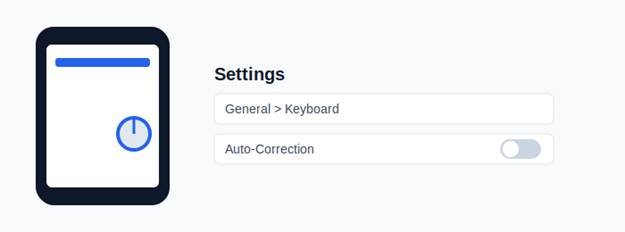
- Open the Settings app.
- Scroll down and tap General.
- Tap Keyboard.
- Turn off the toggle next to Auto-Correction.
While you’re in this menu, you may also want to turn off Check Spelling and Predictive Text if they’re causing similar issues Autocorrect is just one of several typing features Apple bundles together in this same screen. Some iPhone users find that even with Auto-Correction off, the keyboard still changes words while using swipe to-type (also called QuickPath). If that happens, turning off Predictive Text usually resolves it, since swipe typing relies heavily on word prediction to guess what you’re typing.
How to Disable Autocorrect on Android
The steps vary slightly depending on your phone’s brand, but for most Android devices using Gboard (Google’s default keyboard):
- Open Settings.
- Tap System (or General Management on Samsung phones).
- Tap Languages & Input, then On-screen Keyboard.
- Select Gboard, then tap Text Correction.
- Turn off Auto-Correction.
If you’re using Samsung’s own keyboard instead of Gboard, go to Settings > General Management > Samsung Keyboard Settings > Smart Typing, and turn off Auto Correct from there. Samsung’s keyboard also has a separate ‘Predictive text’ toggle in the same menu, which some users disable alongside autocorrect for a cleaner typing experience.
A quicker route on any Gboard keyboard: open the keyboard in any app, hold down the comma key, and tap the gear icon that appears this drops you straight into Gboard settings without digging through the main Settings app.
How to Disable Autocorrect on Windows
Windows applies autocorrect mainly through its on-screen touch keyboard and text suggestions feature, which is most noticeable on tablets, 2-in-1 laptops, or when typing with a stylus.
- Open Settings.
- Go to Devices, then Typing (on newer versions of Windows, this is under Time & Language > Typing).
- Turn off Autocorrect misspelled words.
You can also disable Highlight misspelled words and Show text suggestions on the same screen if you want a completely clean typing experience. Keep in mind that individual apps like Microsoft Word have their own separate autocorrect settings under File > Options > Proofing > AutoCorrect Options — turning off the Windows-wide setting won’t necessarily change how Word behaves.
How to Disable Autocorrect on Mac
- Click the Apple menu and open System Settings.
- Go to Keyboard.
- Click Text Input, then Edit next to Input Sources.
- Turn off Correct spelling automatically.
Alternatively, in most Mac apps you can right-click any text field, hover over Spelling and Grammar, and simply uncheck Correct Spelling Automatically — a faster route if you only want to disable it for one app rather than system-wide. This per-app method is especially useful if you want autocorrect off in something like Notes or Mail, but still want it active elsewhere.
Turning Off Autocorrect for Specific Apps Only
You don’t always have to choose between fully on or fully off. Most platforms let you scope the setting to individual apps. On iPhone and Android, this usually isn’t possible at the OS level, but apps like WhatsApp, Gmail, and Chrome sometimes include their own in-app typing settings that override the system default. On Mac and Windows, per-app control is much easier as shown above, both Mail on Mac and Word on Windows have their own dedicated autocorrect settings separate from the system-wide toggle.
If you only find certain words get changed a name, a technical term, or a brand most keyboards also let you add custom words to a personal dictionary instead of turning autocorrect off entirely. This teaches the keyboard to leave that specific word alone while still catching genuine typos everywhere else.
Should You Turn Off Autocorrect Completely?
Disabling autocorrect entirely isn’t always the best move if you type quickly and rely on it to catch genuine typos. A better middle ground for most people is turning off just auto-capitalization or predictive text while leaving basic spell-check on this cuts down on random word replacements without losing typo protection altogether. Try adjusting one setting at a time to find what actually works for how you type, rather than switching everything off at once.
If you’ve turned off every related setting and your device is still changing words unexpectedly, it may be worth checking for a pending software update, since keyboard bugs like this are occasionally fixed in system patches rather than settings menus.
Further Reading
- Microsoft Support – Turn AutoCorrect on or off in Word
- Android Police – How to turn off autocorrect on your Android phone
- Asurion – How to turn off autocorrect on your phone
- TechRadar – How to disable autocorrect on Mac
Still seeing unwanted corrections after following these steps? Drop a comment with your device and we’ll help you troubleshoot.